🛠️ How to add your clients by bulk import
You can add your existing clients to Firmcheck in bulk using our CSV import tool
Add your whole client list to Firmcheck in one go. It takes four steps.
Before you start
Make sure your Business Units, Partners and Managers are set up in Firmcheck, with names exactly as they appear in your files. For example, if your file lists Jane Doe as a Partner, she needs to be set up in Firmcheck as Jane Doe, not Jane.
1. Download the templates
Companies (including LLPs and LPs)
Trusts, plus trust related parties
2. Fill them in
Add one client per row. Fill in every column marked with an asterisk (*), and don't rename or move the headers. Use dd/mm/yyyy for dates and full country names (e.g. United Kingdom, not UK). Save each file as a CSV.
3. Upload
Go to the Clients tab and click the Actions button.
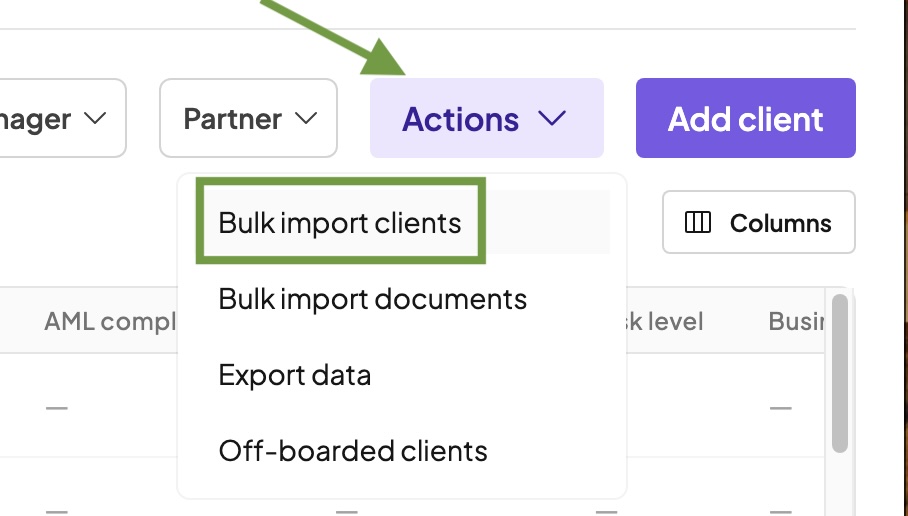
Select Bulk import clients, choose the client type, then upload your completed CSV.
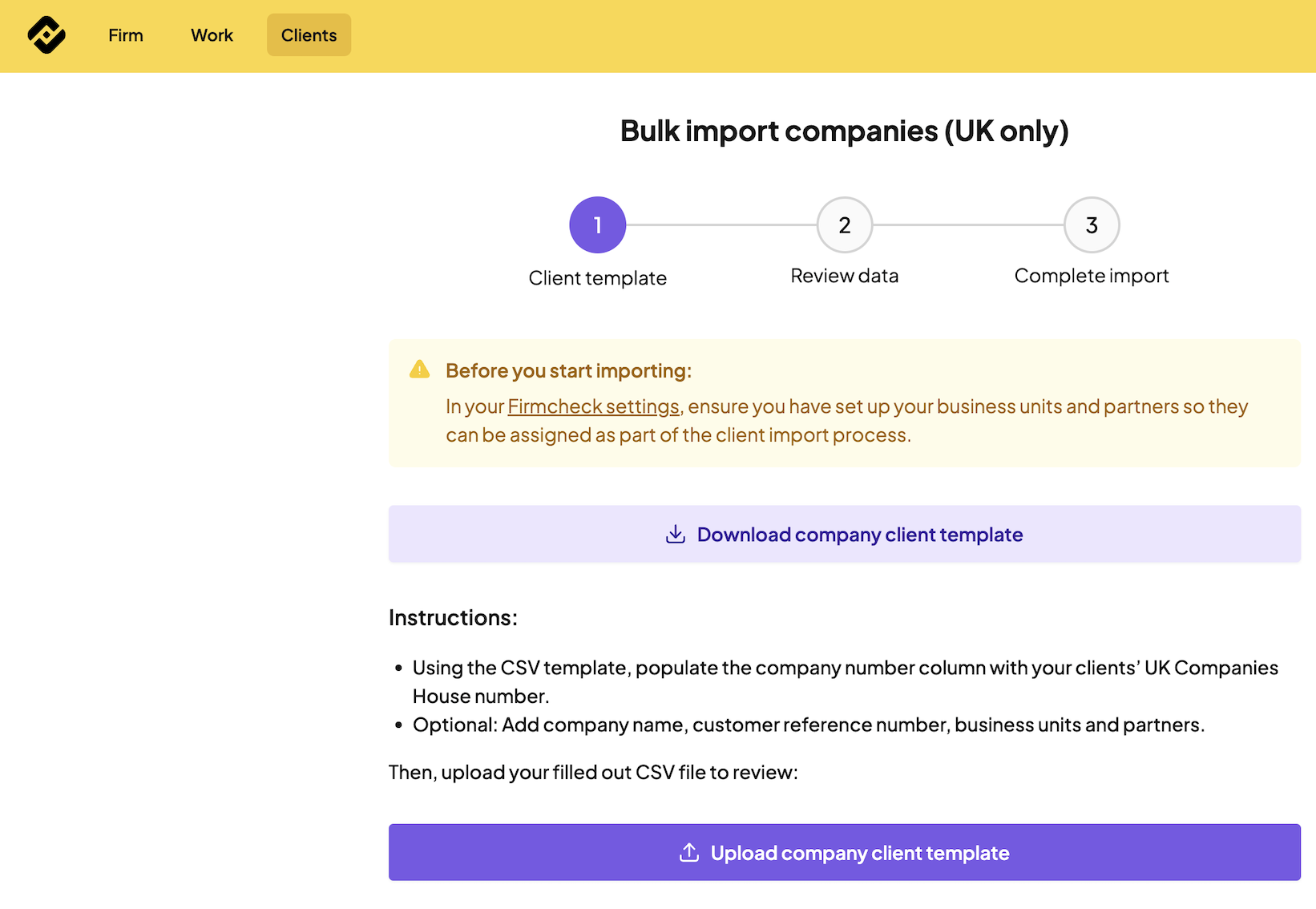
Start with companies. This pulls in their related parties from Companies House, so importing them first avoids duplicate individuals.
4. Review and import
Firmcheck checks your data before anything is imported. Yellow warnings are usually small name differences with Companies House and are safe to accept. Red errors need fixing in your file and re-uploading. If you get a warning that the name doesn't match UKCH, the company number is often wrong.
Once you're happy, complete the import. Your clients will appear in the Clients tab, ready for you to start their AML and ID checks.
See examples of warnings and errors
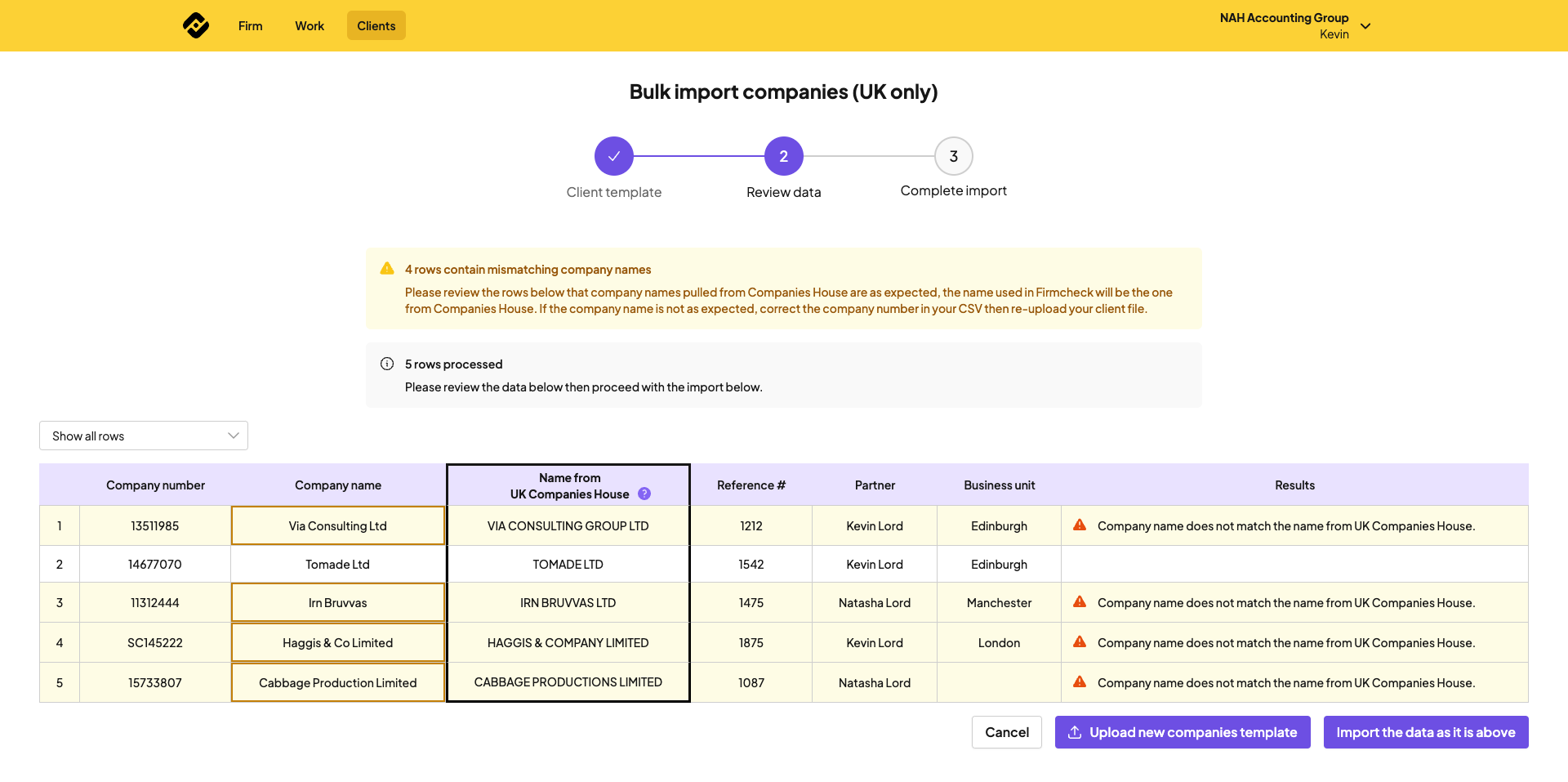
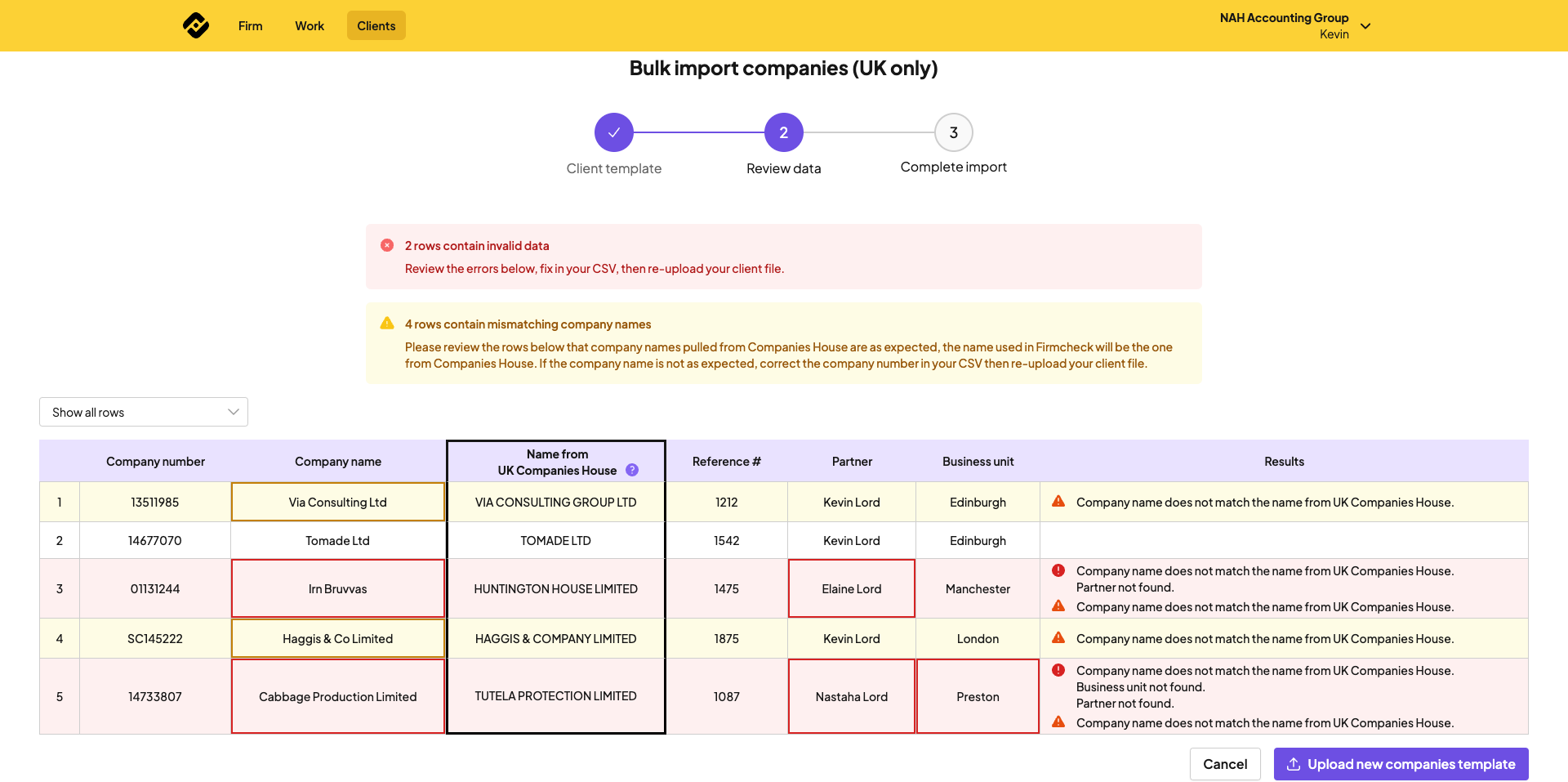
💡 Got a large client list? We offer a managed import service for firms with larger client bases. Send your completed templates to [email protected] and we'll load them in for you.
For smaller imports, the steps above are the quickest way to get set up, and you can reach us via the in-app chat bubble if you get stuck.
Good to know
Partnerships not registered at Companies House need adding manually.
Trusts need both templates. If a trust has no related parties, upload the related parties template blank and the import will still go through.
You can import one email address per client, so use the main one you contact them on.
Any client type not listed above needs adding manually.