🛠️ How to add staff member(s)
Learn how to add staff members to Firmcheck individually or in bulk
The Staff section is where you manage internal staff within Firmcheck. Here, you can add staff members individually, bulk import multiple staff members, remove staff, and update user access permissions.
Adding staff members
To add new staff members, click the purple "Add staff members" button at the top right corner. This will direct you to a form where you can input the general details of the new staff member.
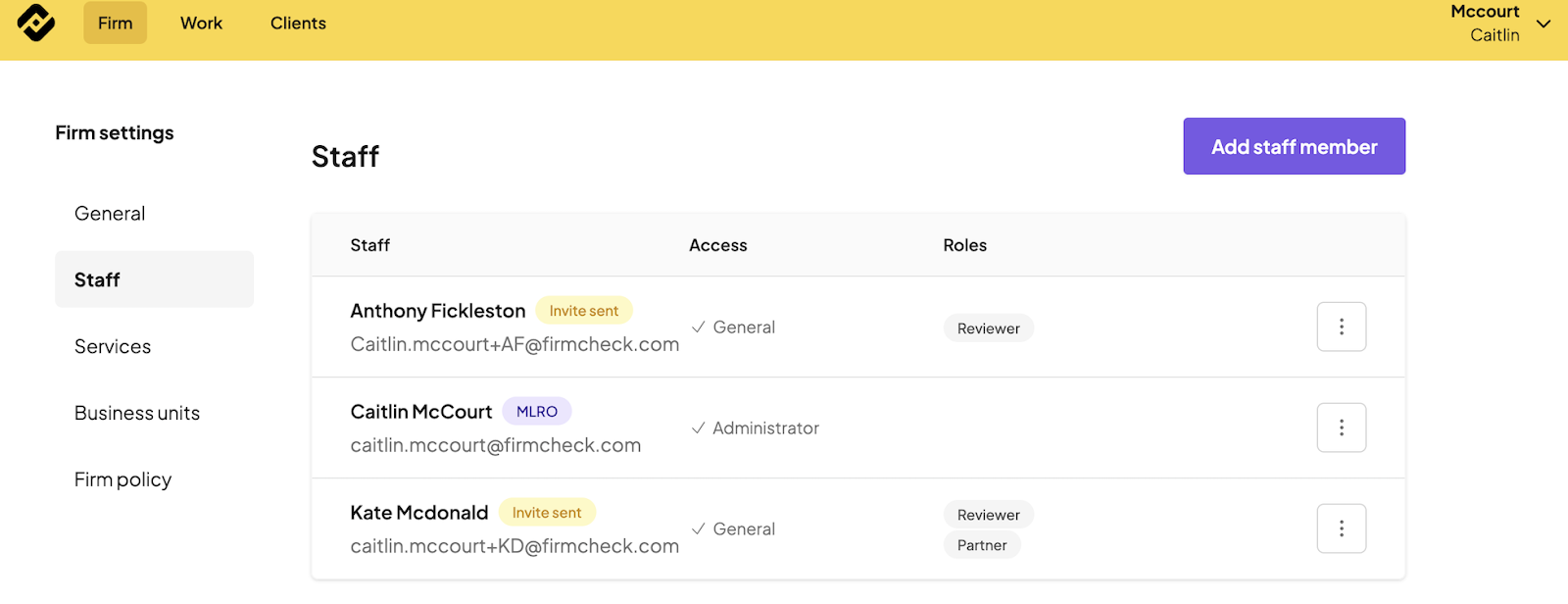
In this section, you have the option to grant administrative access to users. This access level allows them to make changes within the Firmcheck account, including access to billing information.
Bulk importing staff members
If you need to add several staff members at once, you can use the bulk import option.
From the Staff page, click Actions and select Bulk import staff.
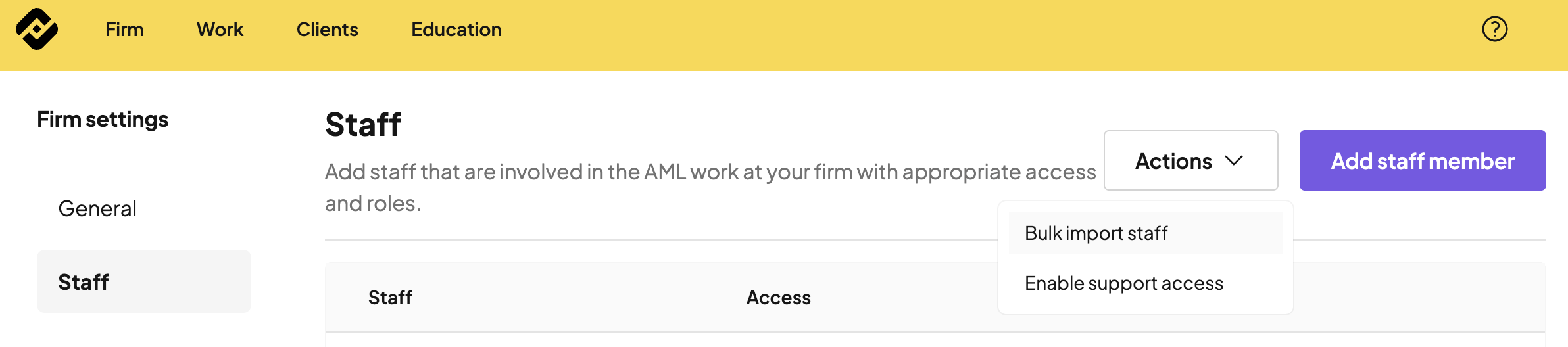
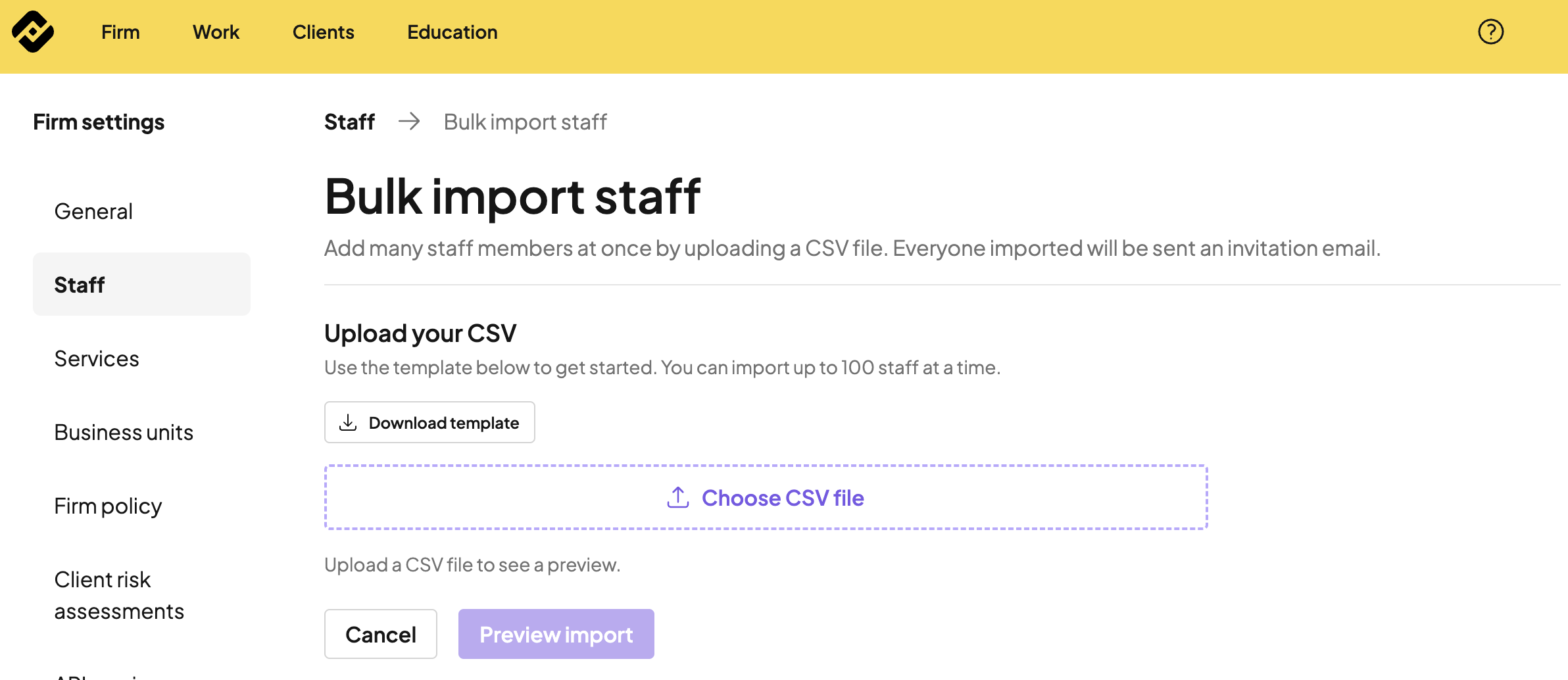
You’ll then be taken to the bulk import page, where you can:
Download the CSV template
Add your staff details to the template
Upload the completed CSV file
Preview the import
Review the staff members and roles before confirming the import
The CSV template includes columns for:
First name
Last name
Email address
Admin access
Partner role
Manager role
Reviewer role
For the role and access columns, enter TRUE or FALSE depending on whether that staff member should have that permission.
You can import up to 100 staff members at a time. Once imported, each staff member will be added to your firm and sent an invitation email.
Please check the preview carefully before confirming the import, as the action cannot be undone.
Firm Roles and Access Levels
Firm Partner: Designate a user as a firm partner if you want them to be assigned clients.
Client Manager: A user role that can be assigned to manage specific clients.
Review AML Determinations: Enable this option if you want the user to review and approve AML determinations for clients.
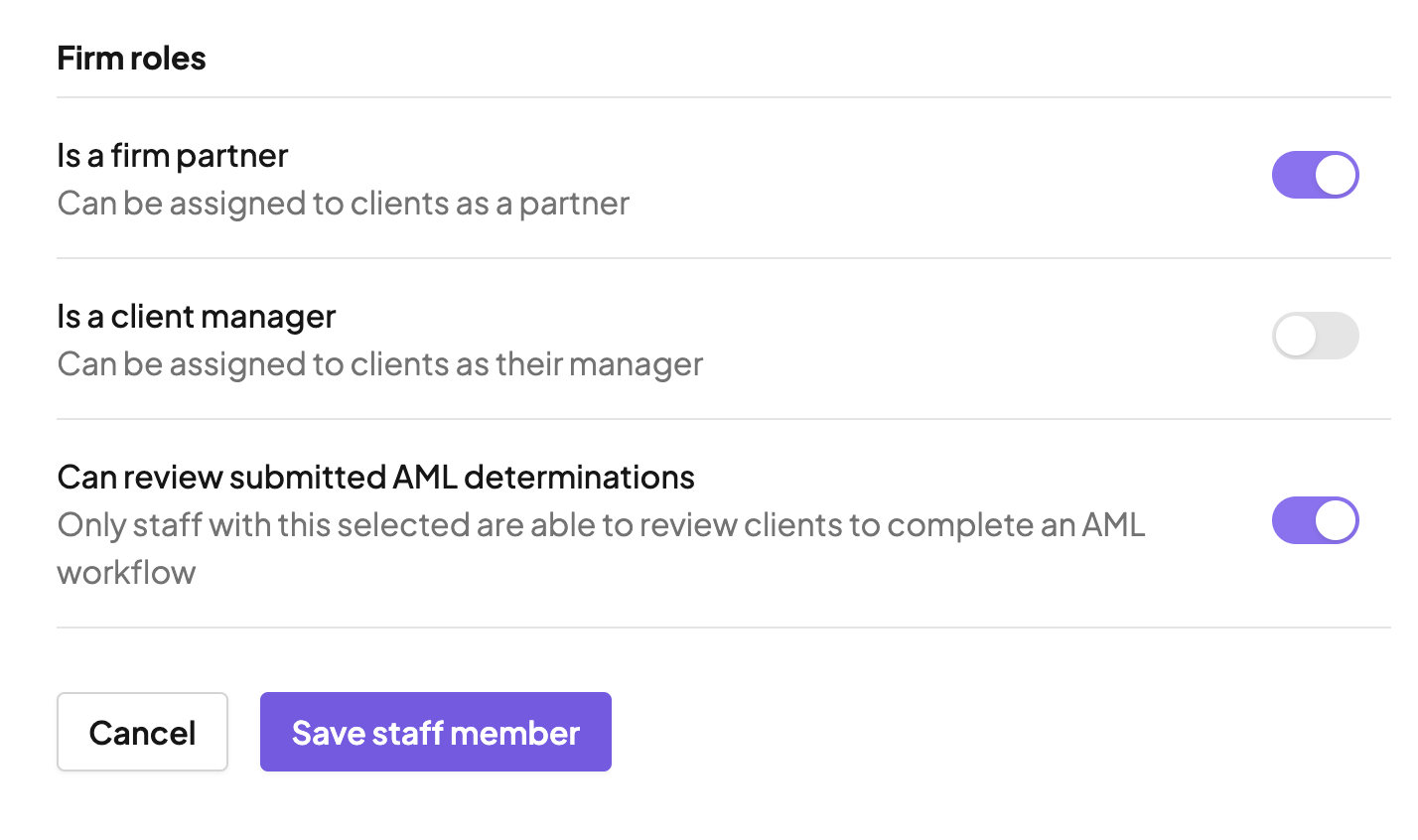
Please note that all settings in this area can be updated at any time to reflect changes in roles or permissions.
To delete a staff member, click the three dots to the right of their name, and select, delete staff.