Risk scoring
Learn about Risk scoring for client risk assessments
Risk scoring helps you and your team rate clients consistently and defensibly, turning risk assessment answers into a calculated risk level you can apply with a click.
We'd love your feedback on this new feature. If you try it, let us know what works and what could help improve it by emailing [email protected].
How does risk scoring work?
When risk scoring is enabled, each Yes answer in a client's risk assessment carries points.
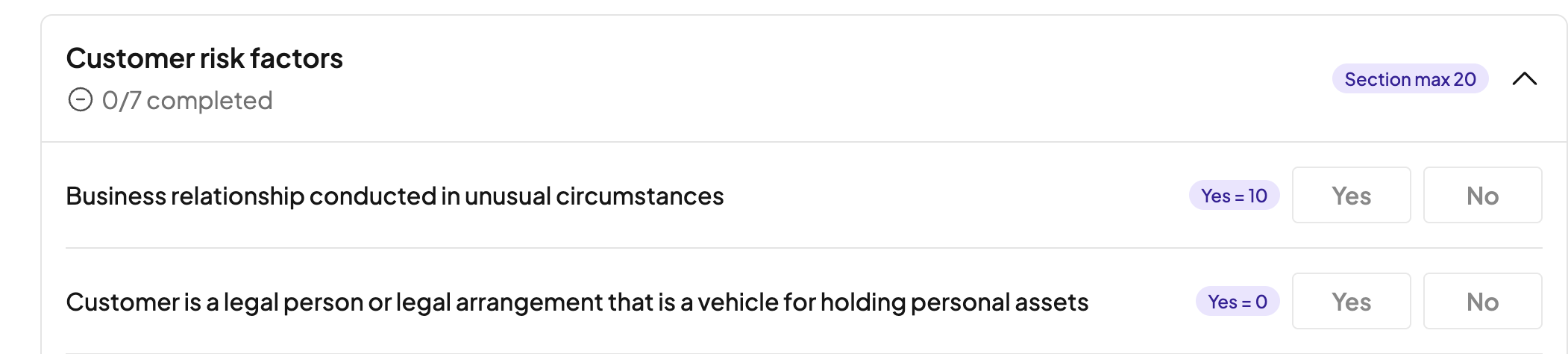
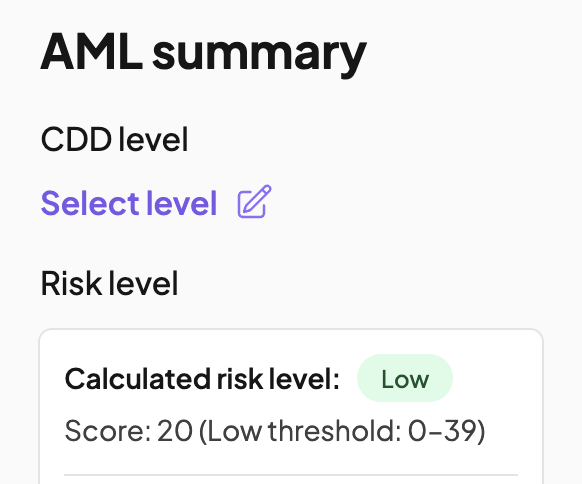
Firmcheck adds up the scores as the assessment is completed and suggests a risk level from thresholds your firm sets (Low, Normal/Medium, or High). The assessor can apply the suggestion or choose a different level with a justification. The score is advisory; the level you save is always the final one.
Why use it
Consistency: the level comes from the answers, so assessors rate the same client the same way.
Auditable: the score, threshold, and a justification are recorded automatically, and overrides require a reason.
Faster: the level is ready the moment the assessment is complete, and can be accepted in one click.
Configurable: you set the factors, points, and thresholds to match your firm's risk appetite.
Setting up risk scoring (admins only)
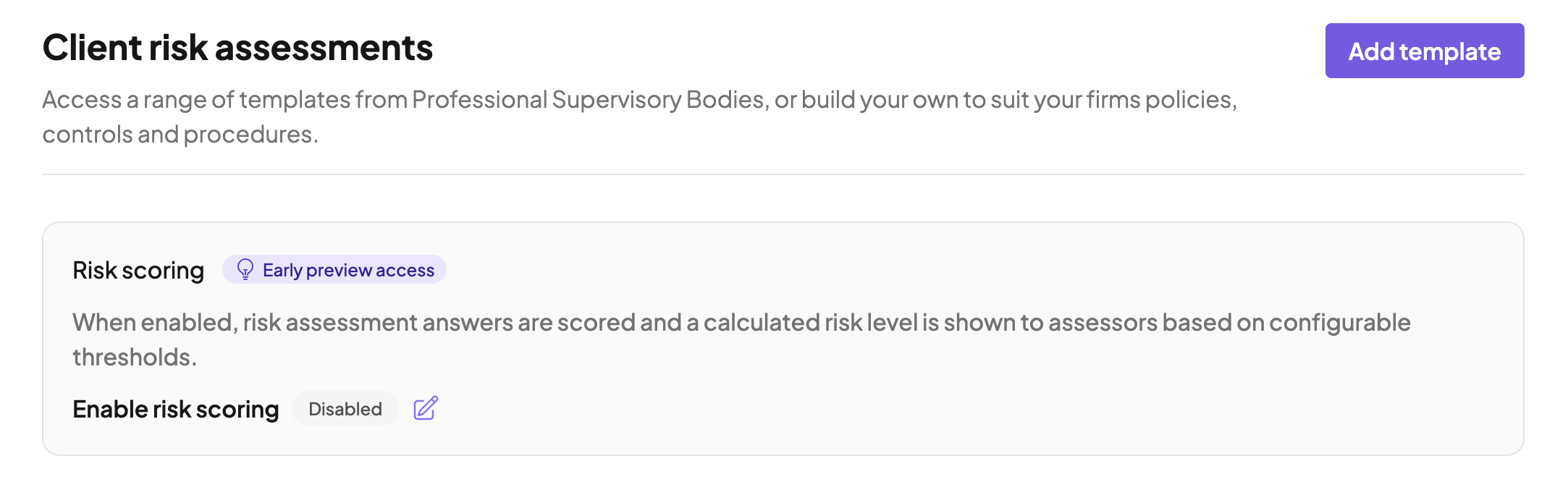
Everything lives under Settings → Client risk assessments.
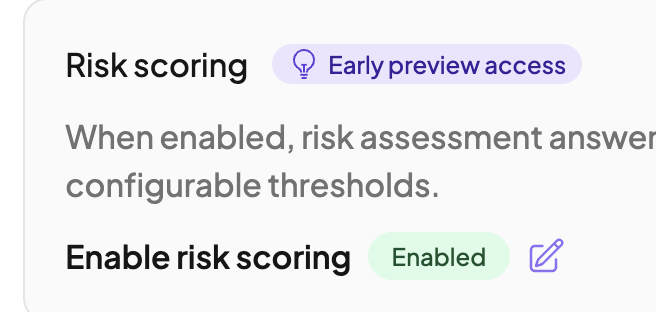
Select the pencil icon next to Enable risk scoring at the top of the page.
Select the tickbox and choose Save changes.
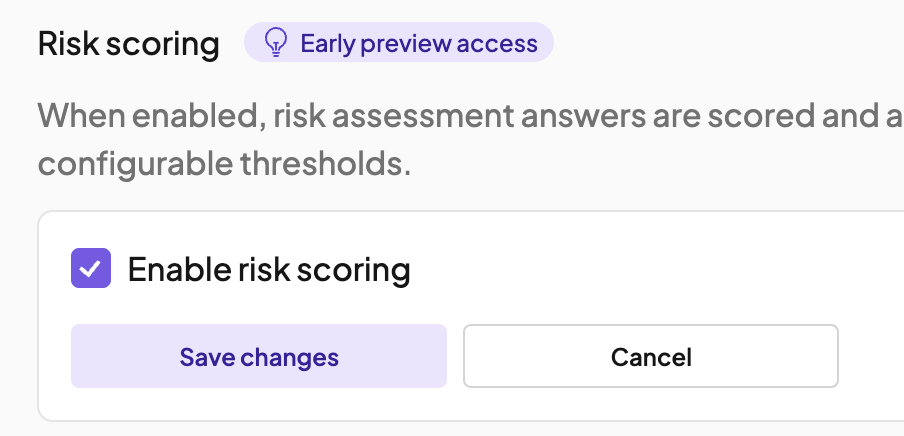
Risk scoring is now enabled at firm level
Once enabled at the firm level, you can then enable Risk scoring on a template level
In the Template library section, for custom templates, click the three dots, then Edit. For industry templates, click the three dots, then Duplicate & customise. This will then appear in your Custom templates section and can be edited
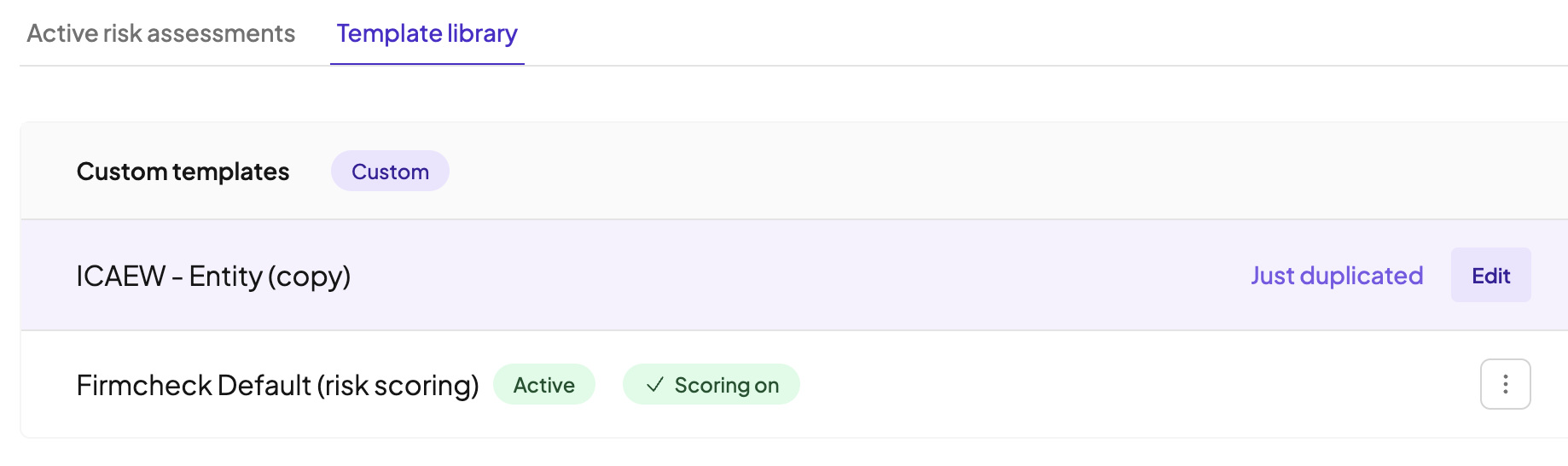
Open a template by selecting Edit, the check the tickbox Risk scoring for this template
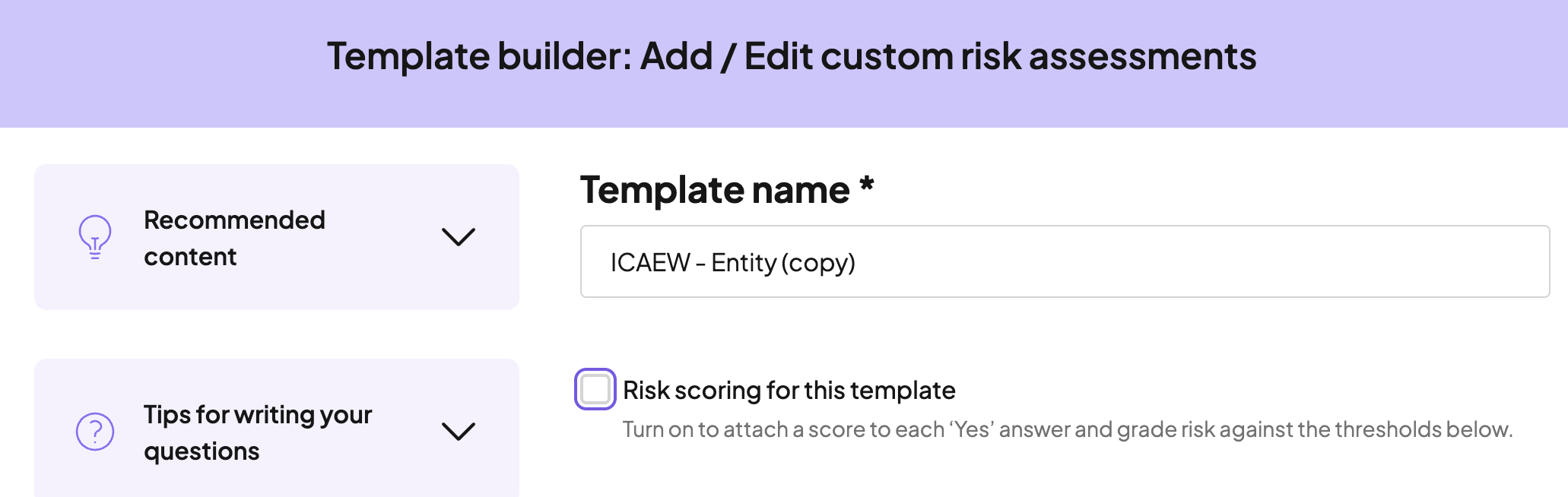
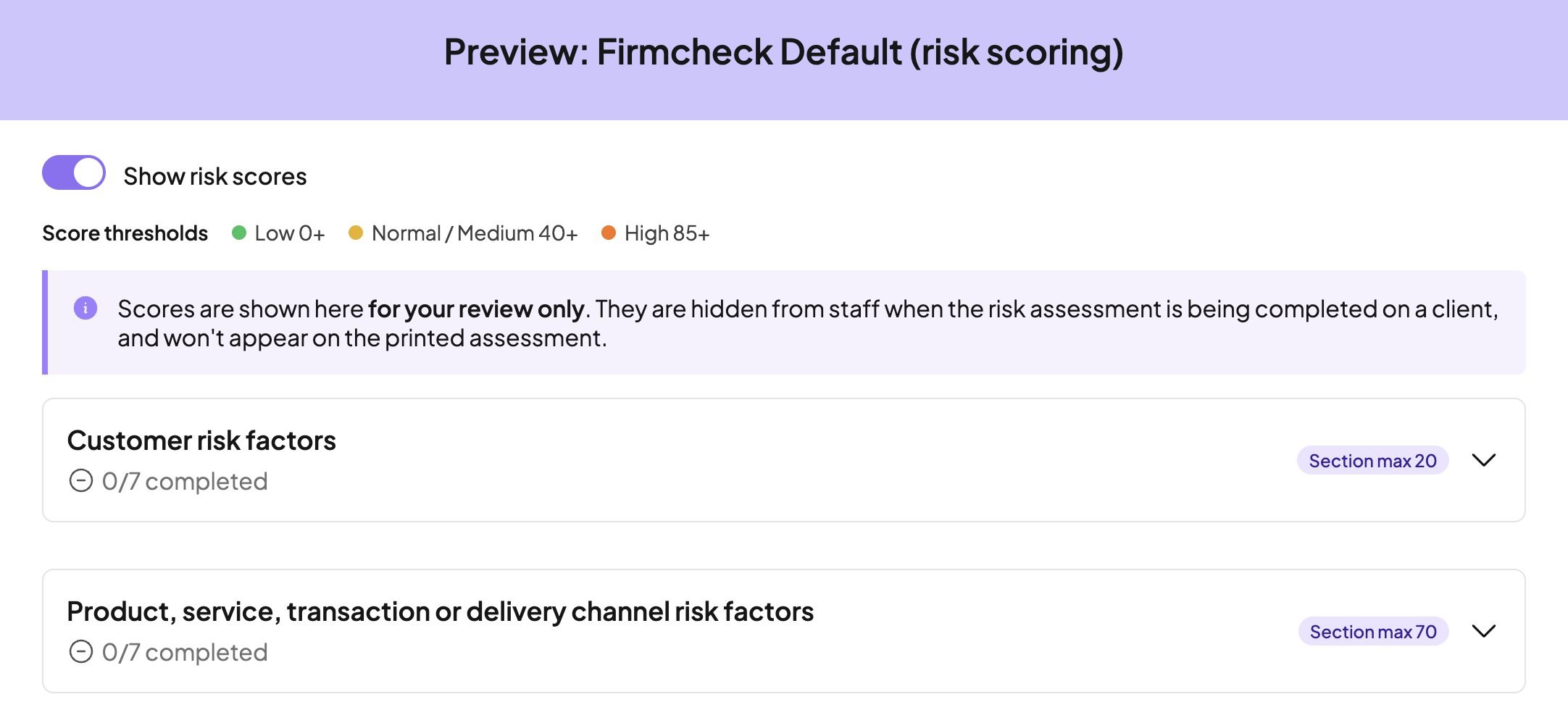
You can now set the parameters for your Normal/Medium and High thresholds, and add score weightings against each question that is answered with a Yes.
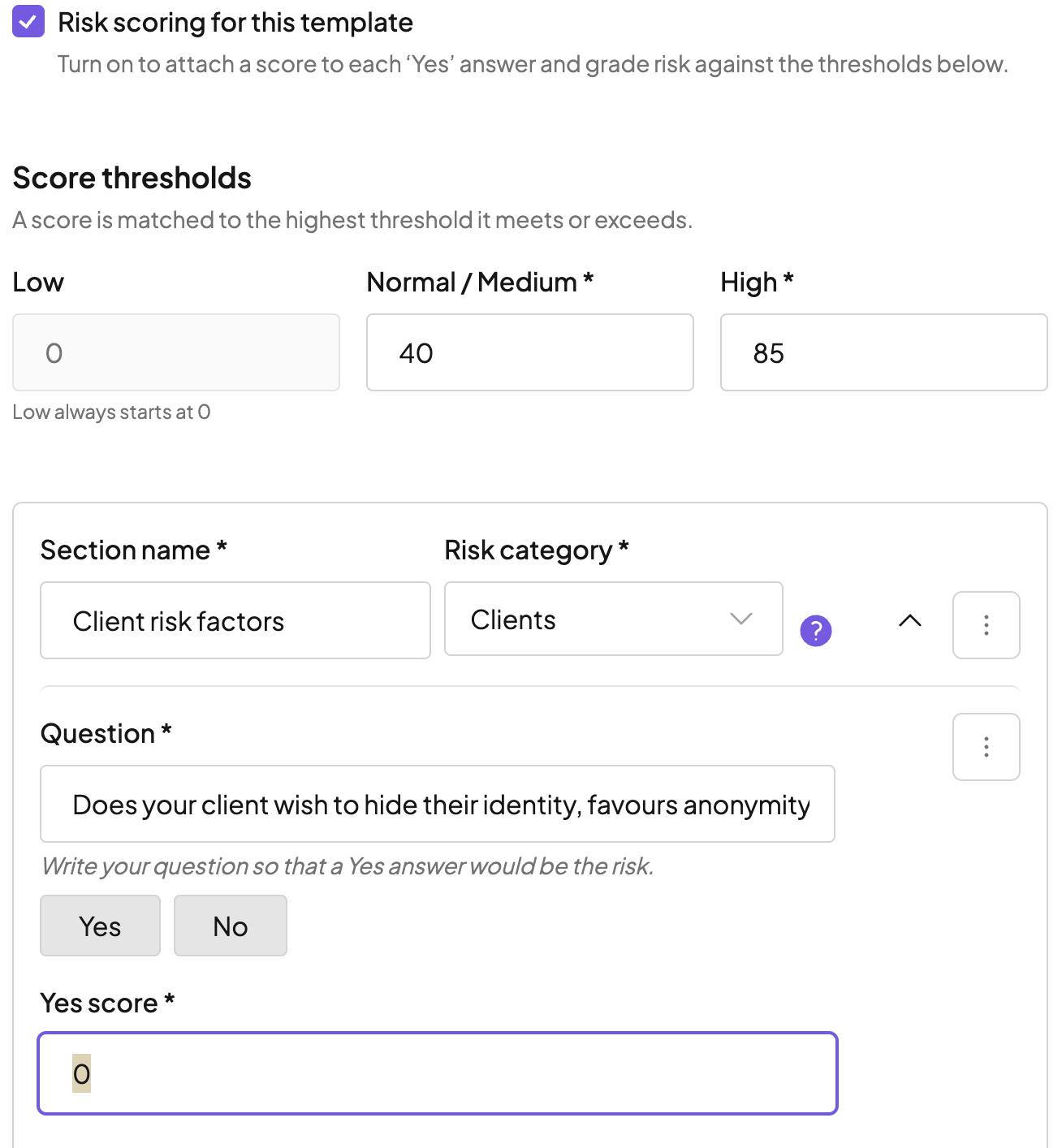
Templates with scoring show a ‘Scoring on’ badge.

To check scores before use, open the template preview and turn on Show risk scores (visible to admins only).
PLEASE NOTE: Template changes will only show for new AMLs that are started. Any AML already in-progress keeps using the template version it started with. To make an in-progress AML use an updated template, delete it and start it again. This will not undo any verifications that have already been completed.
Using risk scoring as an assessor
Once enabled, you don't need to do anything different to your usual process when completing the risk assessment, and scores stay hidden while you work.
Complete the risk assessment, marking each risk factor Yes or No.
When the risk assessment is complete and saved, the Calculated risk level panel shows the suggested level, score, and threshold range. It also shows the risk factors identified that contribute to the score:
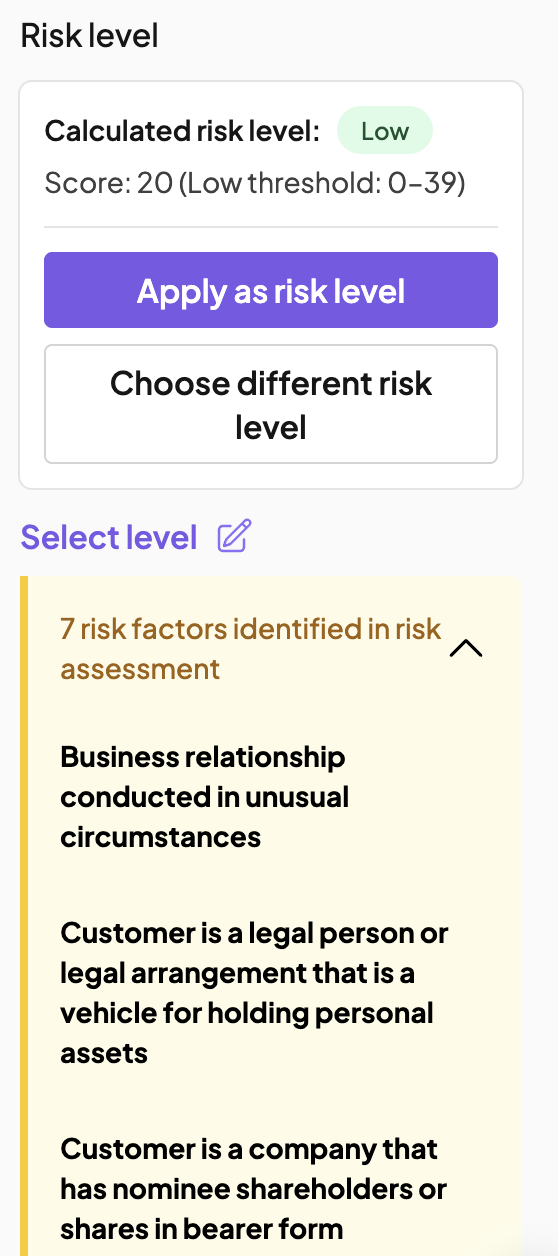
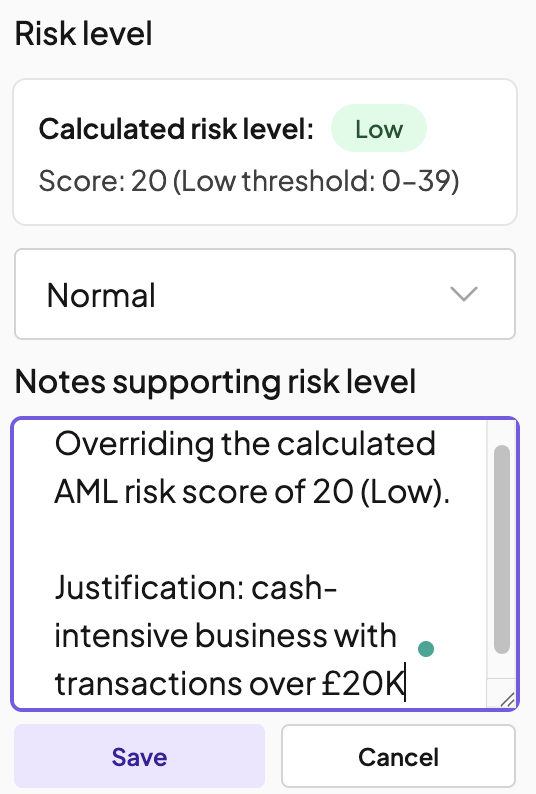
Choose Apply as risk level to accept (Firmcheck adds the justification), or select Choose different risk level to override the score with your own justification.
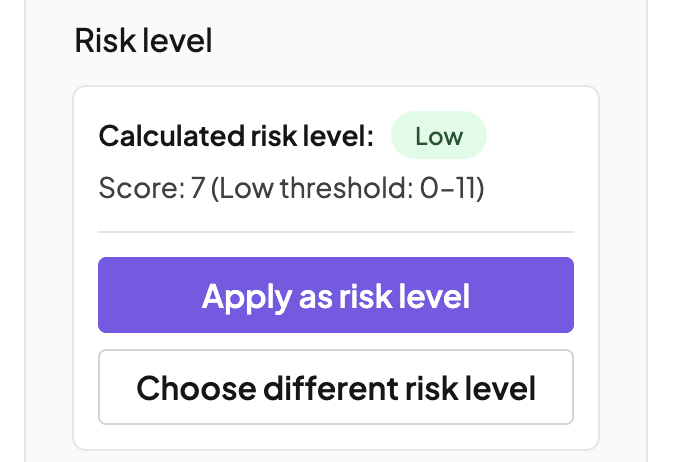
Selecting Apply as risk level
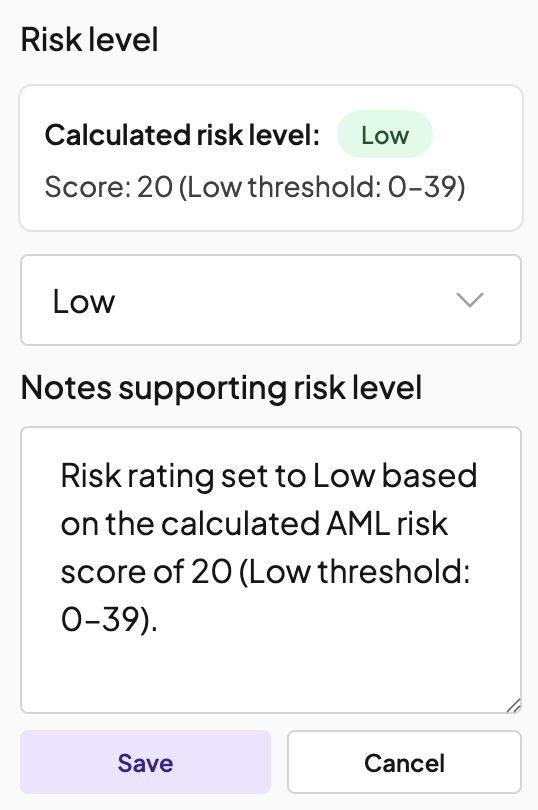
Selecting Choose different risk level and adding your own written justification
How the score is calculated
Each scored risk factor has a points value.
Yes adds to the point calculation; No or unanswered adds nothing.
The total is matched to the highest threshold it meets or exceeds.
Example: jurisdiction question (score 30 for a Yes answer) + PEP question (score 40 for Yes) + ownership (score 25 for Yes), with the first and third question answered Yes, gives a score of 55.
Risk levels and thresholds
Three levels: Low, Normal/Medium, High.
Low always starts at 0.
The Normal/Medium threshold sets the middle band.
The High threshold sets the top band.
For example, with Normal/Medium at 40 and High at 85: 0 to 39 is Low, 40 to 84 is Normal/Medium, and 85+ is High.
Good to know
The calculated level is a recommendation; the level you save is what counts towards the client's determination.
Overrides are allowed, and there is a freetext area to add a justification.
Risk scoring sets the risk level (Low/Normal/Medium/High), separate from the CDD level (Simplified/Standard/Enhanced). You must still choose a CDD level manually.
The ACCA template is the only template from the template library that has default scoring applied. The scores within this template are ACCA’s recommendation. To add scoring to another template from the template library, such as the ICAEW template, duplicate it to add your own scores (explained in point 4 above).